
Introduction
Integrating Dynamics 365 custom tables with Copilot Studio unlocks powerful conversational AI capabilities that directly interact with your business data. Whether you're building intelligent customer service bots, internal helpdesk assistants, or data-driven decision support systems, mastering Dataverse operations in Copilot Studio is essential for creating truly valuable enterprise copilots.
This comprehensive guide explores how developers can leverage Copilot Studio to query, manipulate, and analyze Dynamics 365 custom table records. We'll cover everything from basic CRUD operations to advanced FetchXML queries, Web API integration, and AI-powered intelligent insights.
What You'll Learn:
- Setting up Dataverse connections in Copilot Studio
- Implementing all CRUD operations on custom tables
- Writing efficient FetchXML and OData queries
- Building intelligent record analysis features
- Handling related tables and lookups
- Performance optimization and error handling
- Real-world implementation patterns
Understanding the Architecture
Dataverse and Copilot Studio Integration Stack
Copilot Studio Layer
    ├── Topics (Conversation Logic)
    ├── Variables (Data Storage)
    └── Actions (Data Operations)
         ↓
Power Automate Flows
    ├── Dataverse Connectors
    ├── HTTP Actions (Web API)
    └── Custom Connectors
         ↓
Dataverse Layer
    ├── Standard Tables (Account, Contact, etc.)
    ├── Custom Tables (Your Business Entities)
    ├── Virtual Tables
    └── Elastic Tables
         ↓
Dynamics 365 CRM
    ├── Sales
    ├── Customer Service
    ├── Field Service
    └── Custom Apps
Connection Methods
Power Automate Dataverse Connector (Recommended)
- Pre-built actions for common operations
- Handles authentication automatically
- Built-in error handling
- Best for standard operations
Dataverse Web API (Advanced)
- Full OData v4 capabilities
- Custom queries and batch operations
- Greater control and flexibility
- Requires manual authentication
Custom Connectors
- Wrapper around Web API
- Reusable across multiple flows
- Custom operations and logic
Prerequisites and Setup
Required Permissions
Service Account Requirements:
Dynamics 365 Permissions:
├── Read privileges on target custom tables
├── Write privileges (for create/update/delete)
├── Append/Append To (for lookups)
└── System Administrator (for development)

Dataverse Security Roles:
├── Basic User (minimum)
├── Custom security role with table-specific permissions
└── Field-level security considerations

Power Platform Environment:
├── Environment Maker role (for development)
├── System Customizer (for table access)
└── Copilot Studio User license
Setting Up Dataverse Connection in Power Automate
Step 1: Create Connection
1. Open Power Automate (make.powerautomate.com)
2. Navigate to Data → Connections
3. Click "+ New connection"
4. Search for "Microsoft Dataverse"
5. Select authentication method:
   - User credentials (for personal bots)
   - Service Principal (for production bots)
   - Managed Identity (recommended for enterprise)
6. Authorize and save connection
Step 2: Configure Service Principal (Production)
powershell
# Azure AD App Registration
az ad app create --display-name "CopilotStudio-Dataverse-Connector"

# Grant API Permissions
- Dynamics CRM: user_impersonation
- Microsoft Graph: User.Read

# Create Client Secret
az ad app credential reset --id <app-id>

# Assign Application User in Dynamics 365
1. Settings → Security → Users
2. New → Application User
3. Map to Azure AD App
4. Assign Security Role
Working with Custom Tables
Creating a Custom Table (Quick Reference)
For this guide, we'll work with a sample custom table called "Support Case" (cr_supportcase):
Table Schema:
Table Name: cr_supportcase
Display Name: Support Case

Columns:
├── cr_supportcaseid (Primary Key, GUID)
├── cr_name (Primary Name, String)
├── cr_title (String, 200 chars)
├── cr_description (Multiline Text)
├── cr_priority (Choice: Low=1, Medium=2, High=3, Critical=4)
├── cr_status (Choice: New=1, InProgress=2, Resolved=3, Closed=4)
├── cr_category (Choice: Technical=1, Billing=2, General=3)
├── cr_customerid (Lookup to Contact)
├── cr_assignedto (Lookup to User)
├── cr_createdon (DateTime)
├── cr_resolvedon (DateTime, nullable)
└── cr_estimatedresolutiontime (Whole Number, in hours)

Relationships:
├── cr_supportcase_contact (Many-to-One with Contact)
└── cr_supportcase_systemuser (Many-to-One with User)
CRUD Operations Implementation
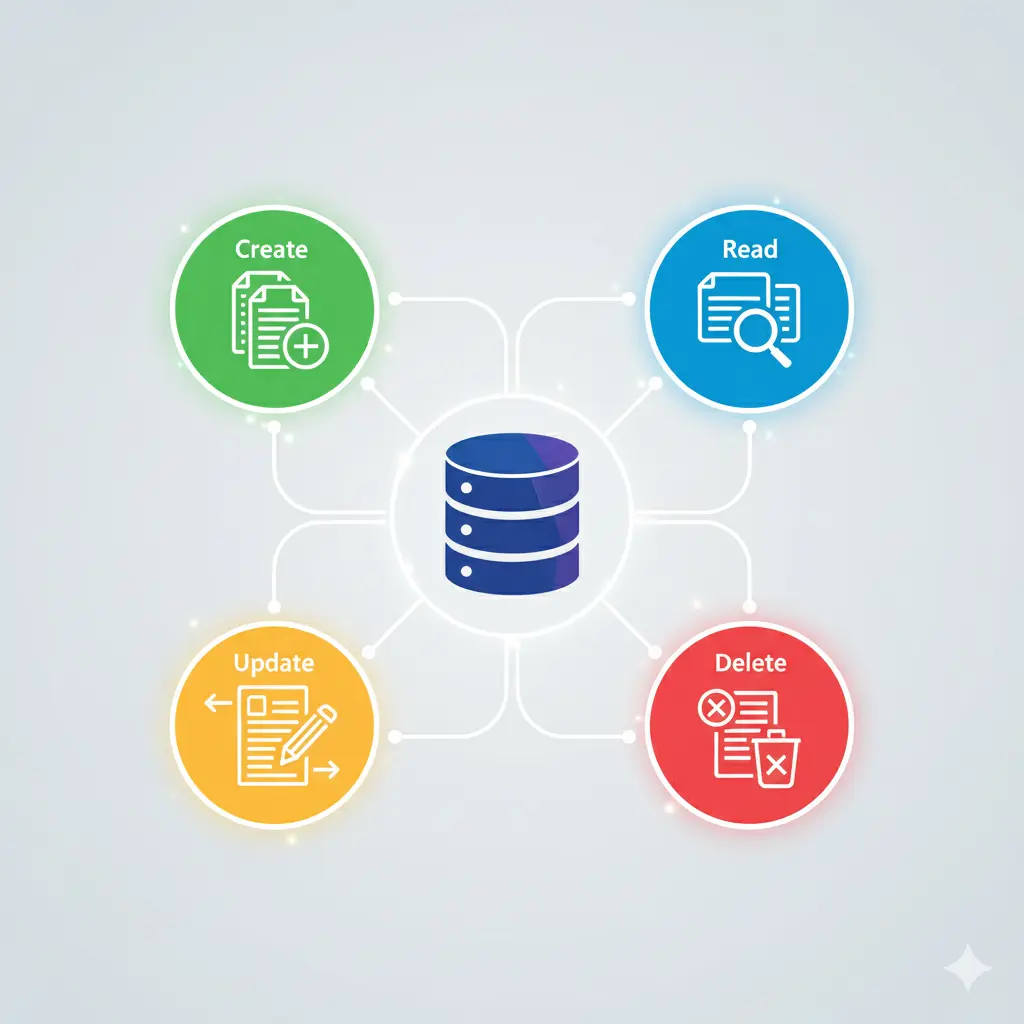
1. CREATE: Adding New Records
Method A: Using Dataverse Connector (Power Automate)
Flow Configuration:
Flow Name: CreateSupportCase
Trigger: Copilot Studio (Manual trigger)

Input Parameters:
├── Title (String, Required)
├── Description (String, Required)
├── Priority (Integer, Required)
├── Category (Integer, Required)
└── CustomerEmail (String, Required)

Actions:

1. List Rows - Contact Table
   Table: contacts
   Filter: emailaddress1 eq '@{triggerBody()['text']}'
   Select: contactid, fullname
   Top Count: 1
   └── Store in: var_ContactRecord

2. Condition: Check if Contact Exists
   IF length(outputs('List_Rows')?['body/value']) greater than 0

   THEN:
   3. Add a New Row - Support Case
      Table: cr_supportcases
      Fields:
        cr_name: @{triggerBody()['text_1']} (Title)
        cr_title: @{triggerBody()['text_1']}
        cr_description: @{triggerBody()['text_2']}
        cr_priority: @{triggerBody()['number']} (Priority)
        cr_status: 1 (New)
        cr_category: @{triggerBody()['number_1']} (Category)
        _cr_customerid_value: @{first(outputs('List_Rows')?['body/value'])?['contactid']}

      └── Store Output in: var_NewCaseId, var_NewCaseName

   4. Respond to Copilot Studio
      Return Object:
        {
          "CaseId": "@{outputs('Add_a_new_row')?['body/cr_supportcaseid']}",
          "CaseNumber": "@{outputs('Add_a_new_row')?['body/cr_name']}",
          "Status": "Success",
          "Message": "Support case created successfully"
        }

   ELSE:
   5. Respond to Copilot Studio (Error)
      Return Object:
        {
          "Status": "Error",
          "Message": "Customer not found with provided email"
        }
Copilot Studio Topic Implementation:
Topic: Create Support Case

Node 1: Message
"I'll help you create a new support case."

Node 2: Question - Adaptive Card (or Text)
"What's the title of your issue?"
└── Save to: var_CaseTitle (String)

Node 3: Question
"Please describe the issue in detail:"
└── Save to: var_CaseDescription (String)

Node 4: Question - Choice
"What's the priority level?"
Options:
  - Low (value: 1)
  - Medium (value: 2)
  - High (value: 3)
  - Critical (value: 4)
└── Save to: var_Priority (Number)

Node 5: Question - Choice
"Which category does this fall under?"
Options:
  - Technical Support (value: 1)
  - Billing (value: 2)
  - General Inquiry (value: 3)
└── Save to: var_Category (Number)

Node 6: Question
"Please provide your email address for case updates:"
└── Save to: var_CustomerEmail (String)

Node 7: Action - Call Power Automate Flow
Flow: CreateSupportCase
Inputs:
  ├── Title: var_CaseTitle
  ├── Description: var_CaseDescription
  ├── Priority: var_Priority
  ├── Category: var_Category
  └── CustomerEmail: var_CustomerEmail

Outputs:
  ├── var_ResponseStatus
  ├── var_ResponseMessage
  ├── var_CaseId
  └── var_CaseNumber

Node 8: Condition
IF var_ResponseStatus equals "Success"
  THEN:
    Node 9: Message
    "✅ Your support case has been created successfully!

    Case Number: {var_CaseNumber}
    Case ID: {var_CaseId}

    You'll receive updates at {var_CustomerEmail}"

  ELSE:
    Node 10: Message
    "❌ Unable to create case: {var_ResponseMessage}

    Please verify your email address or contact support."
Method B: Using Dataverse Web API (Advanced)
Power Automate Flow with HTTP Action:
Flow Name: CreateSupportCaseWebAPI

Actions:

1. Initialize Variable - AccessToken
   Type: String
   Value: @{body('Get_Token')?['access_token']}

2. HTTP - Create Record
   Method: POST
   URI: https://[org].api.crm.dynamics.com/api/data/v9.2/cr_supportcases
   Headers:
     Authorization: Bearer @{variables('AccessToken')}
     Content-Type: application/json
     OData-MaxVersion: 4.0
     OData-Version: 4.0
     Accept: application/json

   Body:
   {
     "cr_name": "@{triggerBody()['Title']}",
     "cr_title": "@{triggerBody()['Title']}",
     "cr_description": "@{triggerBody()['Description']}",
     "cr_priority": @{triggerBody()['Priority']},
     "cr_status": 1,
     "cr_category": @{triggerBody()['Category']},
     "cr_customerid@odata.bind": "/contacts(@{triggerBody()['ContactId']})"
   }

3. Parse JSON - Response
   Content: @{body('HTTP')}
   Schema:
   {
     "type": "object",
     "properties": {
       "cr_supportcaseid": {"type": "string"},
       "cr_name": {"type": "string"},
       "@odata.context": {"type": "string"}
     }
   }

4. Respond to Copilot Studio
   Return parsed response
2. READ: Retrieving Records
Scenario 1: Get Single Record by ID
Power Automate Flow:
Flow Name: GetSupportCaseById
Trigger: Copilot Studio

Input: CaseId (String/GUID)

Actions:

1. Get a Row by ID - Dataverse
   Table: cr_supportcases
   Row ID: @{triggerBody()['text']} (CaseId)

   Select Columns:
     cr_supportcaseid,
     cr_name,
     cr_title,
     cr_description,
     cr_priority,
     cr_status,
     cr_category,
     _cr_customerid_value,
     _cr_assignedto_value,
     cr_createdon,
     cr_resolvedon

   Expand Columns:
     cr_customerid($select=fullname,emailaddress1,telephone1),
     cr_assignedto($select=fullname,internalemailaddress)

2. Compose - Format Response
   Inputs:
   {
     "CaseId": "@{outputs('Get_a_row_by_ID')?['body/cr_supportcaseid']}",
     "CaseNumber": "@{outputs('Get_a_row_by_ID')?['body/cr_name']}",
     "Title": "@{outputs('Get_a_row_by_ID')?['body/cr_title']}",
     "Description": "@{outputs('Get_a_row_by_ID')?['body/cr_description']}",
     "Priority": "@{outputs('Get_a_row_by_ID')?['body/cr_priority']}",
     "PriorityLabel": "@{if(equals(outputs('Get_a_row_by_ID')?['body/cr_priority'], 1), 'Low', if(equals(outputs('Get_a_row_by_ID')?['body/cr_priority'], 2), 'Medium', if(equals(outputs('Get_a_row_by_ID')?['body/cr_priority'], 3), 'High', 'Critical')))}",
     "Status": "@{outputs('Get_a_row_by_ID')?['body/cr_status']}",
     "StatusLabel": "@{if(equals(outputs('Get_a_row_by_ID')?['body/cr_status'], 1), 'New', if(equals(outputs('Get_a_row_by_ID')?['body/cr_status'], 2), 'In Progress', if(equals(outputs('Get_a_row_by_ID')?['body/cr_status'], 3), 'Resolved', 'Closed')))}",
     "CustomerName": "@{outputs('Get_a_row_by_ID')?['body/cr_customerid/fullname']}",
     "CustomerEmail": "@{outputs('Get_a_row_by_ID')?['body/cr_customerid/emailaddress1']}",
     "AssignedTo": "@{outputs('Get_a_row_by_ID')?['body/cr_assignedto/fullname']}",
     "CreatedOn": "@{outputs('Get_a_row_by_ID')?['body/cr_createdon']}",
     "ResolvedOn": "@{outputs('Get_a_row_by_ID')?['body/cr_resolvedon']}"
   }

3. Respond to Copilot Studio
   Return: @{outputs('Compose')}
Copilot Studio Topic:
Topic: Check Case Status

Node 1: Question
"Please provide your case number (e.g., CASE-001234):"
└── Save to: var_CaseNumber (String)

Node 2: Action - GetSupportCaseById
Input: var_CaseNumber
Outputs: var_CaseDetails (Object)

Node 3: Condition
IF var_CaseDetails is not empty

THEN:
  Node 4: Adaptive Card Message
  Title: "Case Details - {var_CaseDetails.CaseNumber}"
  Body:
    - **Title:** {var_CaseDetails.Title}
    - **Status:** {var_CaseDetails.StatusLabel}
    - **Priority:** {var_CaseDetails.PriorityLabel}
    - **Description:** {var_CaseDetails.Description}
    - **Created:** {var_CaseDetails.CreatedOn}
    - **Assigned To:** {var_CaseDetails.AssignedTo}

  Actions:
    - Button: "Update Case"
    - Button: "Close Case"
    - Button: "Add Comment"

ELSE:
  Node 5: Message
  "❌ Case {var_CaseNumber} not found. Please verify the case number."
Scenario 2: List Records with Filters
Power Automate Flow with Complex Filtering:
Flow Name: ListSupportCasesByCustomer
Trigger: Copilot Studio

Inputs:
├── CustomerEmail (String)
├── Status (Number, Optional)
└── MaxRecords (Number, Default: 10)

Actions:

1. Initialize Variable - FilterQuery
   Type: String

2. Condition: Check if Status provided
   IF Status is not null
     Set FilterQuery: "cr_customerid/emailaddress1 eq '@{triggerBody()['text']}' and cr_status eq @{triggerBody()['number']}"
   ELSE
     Set FilterQuery: "cr_customerid/emailaddress1 eq '@{triggerBody()['text']}'"

3. List Rows - Support Cases
   Table: cr_supportcases

   Filter Rows: @{variables('FilterQuery')}

   Select Columns:
     cr_supportcaseid,
     cr_name,
     cr_title,
     cr_priority,
     cr_status,
     cr_createdon

   Expand Query:
     cr_customerid($select=fullname)

   Order By: cr_createdon desc

   Top Count: @{triggerBody()['number_1']}

4. Select - Format Records Array
   From: @{outputs('List_rows')?['body/value']}
   Map:
   {
     "CaseId": "@{item()?['cr_supportcaseid']}",
     "CaseNumber": "@{item()?['cr_name']}",
     "Title": "@{item()?['cr_title']}",
     "Priority": "@{item()?['cr_priority']}",
     "Status": "@{item()?['cr_status']}",
     "CreatedOn": "@{item()?['cr_createdon']}"
   }

5. Compose - Response Object
   {
     "TotalCount": @{length(outputs('Select'))},
     "Cases": @{outputs('Select')}
   }

6. Respond to Copilot Studio
Copilot Studio Implementation:
Topic: My Open Cases

Node 1: Authenticate User
[Authentication logic - covered in previous section]
└── Output: var_UserEmail

Node 2: Question - Choice
"Which cases would you like to see?"
Options:
  - All My Cases
  - New Cases Only
  - In Progress
  - Resolved Cases
└── Save to: var_FilterChoice

Node 3: Set Variable
Based on var_FilterChoice:
  - "All My Cases" → var_StatusFilter = null
  - "New Cases Only" → var_StatusFilter = 1
  - "In Progress" → var_StatusFilter = 2
  - "Resolved Cases" → var_StatusFilter = 3

Node 4: Action - ListSupportCasesByCustomer
Inputs:
  ├── CustomerEmail: var_UserEmail
  ├── Status: var_StatusFilter
  └── MaxRecords: 10
Output: var_CasesList (Object)

Node 5: Condition
IF var_CasesList.TotalCount > 0

THEN:
  Node 6: Message with Adaptive Card List
  "📋 Found {var_CasesList.TotalCount} case(s):

  [Loop through var_CasesList.Cases]
  For each case:
    🎫 **{item.CaseNumber}** - {item.Title}
    Status: {item.StatusLabel} | Priority: {item.PriorityLabel}
    Created: {item.CreatedOn}
    [View Details Button]

  Node 7: Question - Choice
  "Would you like to:"
  - View a specific case
  - Create new case
  - Exit

ELSE:
  Node 8: Message
  "No cases found matching your criteria."
3. UPDATE: Modifying Records
Power Automate Flow:
Flow Name: UpdateSupportCase
Trigger: Copilot Studio

Inputs:
├── CaseId (String, Required)
├── Status (Number, Optional)
├── Priority (Number, Optional)
├── AssignedToUserId (String, Optional)
└── Notes (String, Optional)

Actions:

1. Get a Row by ID (Validate existence)
   Table: cr_supportcases
   Row ID: @{triggerBody()['text']}

2. Initialize Variable - UpdatePayload
   Type: Object
   Value: {}

3. Condition: Check Status Update
   IF Status is not null
     Append to Variable:
     {
       "cr_status": @{triggerBody()['number']}
     }

4. Condition: Check Priority Update
   IF Priority is not null
     Append to Variable:
     {
       "cr_priority": @{triggerBody()['number_1']}
     }

5. Condition: Check Assignment Update
   IF AssignedToUserId is not null
     Append to Variable:
     {
       "cr_assignedto@odata.bind": "/systemusers(@{triggerBody()['text_1']})"
     }

6. Condition: If Status changed to Resolved/Closed
   IF new Status equals 3 or 4
     Append to Variable:
     {
       "cr_resolvedon": "@{utcNow()}"
     }

7. Update a Row - Dataverse
   Table: cr_supportcases
   Row ID: @{triggerBody()['text']}

   [Apply all fields from UpdatePayload variable]

8. Condition: Add Note if provided
   IF Notes is not null
     Create Annotation (Note)
     Regarding: cr_supportcase(@{triggerBody()['text']})
     Note Text: @{triggerBody()['text_2']}

9. Get Updated Row (for confirmation)
   Table: cr_supportcases
   Row ID: @{triggerBody()['text']}
   Select: cr_name, cr_status, cr_priority

10. Respond to Copilot Studio
    {
      "Success": true,
      "CaseNumber": "@{outputs('Get_Updated_Row')?['body/cr_name']}",
      "UpdatedStatus": "@{outputs('Get_Updated_Row')?['body/cr_status']}",
      "UpdatedPriority": "@{outputs('Get_Updated_Row')?['body/cr_priority']}",
      "Message": "Case updated successfully"
    }
Copilot Studio Topic:
Topic: Update Case Status

Node 1: Question
"Please provide the case number you want to update:"
└── Save to: var_CaseToUpdate

Node 2: Action - GetSupportCaseById
Input: var_CaseToUpdate
Output: var_CurrentCase

Node 3: Condition
IF var_CurrentCase exists

THEN:
  Node 4: Message
  "Current Status: {var_CurrentCase.StatusLabel}
  Current Priority: {var_CurrentCase.PriorityLabel}"

  Node 5: Question - Multiple Choice
  "What would you like to update?"
  Options:
    ☑ Change Status
    ☑ Change Priority
    ☑ Add Notes
    ☑ Request Reassignment
  └── Save to: var_UpdateOptions (Array)

  Node 6: Condition - Change Status Selected
  IF "Change Status" in var_UpdateOptions
    Node 7: Question - Choice
    "Select new status:"
    - In Progress (2)
    - Resolved (3)
    - Closed (4)
    └── Save to: var_NewStatus

  Node 8: Condition - Change Priority Selected
  IF "Change Priority" in var_UpdateOptions
    Node 9: Question - Choice
    "Select new priority:"
    - Low (1)
    - Medium (2)
    - High (3)
    - Critical (4)
    └── Save to: var_NewPriority

  Node 10: Condition - Add Notes Selected
  IF "Add Notes" in var_UpdateOptions
    Node 11: Question
    "Please enter your notes:"
    └── Save to: var_UpdateNotes

  Node 12: Action - UpdateSupportCase
  Inputs:
    ├── CaseId: var_CaseToUpdate
    ├── Status: var_NewStatus (if set)
    ├── Priority: var_NewPriority (if set)
    └── Notes: var_UpdateNotes (if set)
  Output: var_UpdateResult

  Node 13: Message
  "✅ Case {var_UpdateResult.CaseNumber} has been updated successfully!"

ELSE:
  Node 14: Message
  "❌ Case not found. Please verify the case number."
4. DELETE: Removing Records
Power Automate Flow:
Flow Name: DeleteSupportCase (with safety checks)
Trigger: Copilot Studio

Input: CaseId (String)

Actions:

1. Get a Row by ID - Validate
   Table: cr_supportcases
   Row ID: @{triggerBody()['text']}
   Select: cr_name, cr_status, cr_createdon

2. Condition: Safety Check - Case must be Closed
   IF cr_status equals 4 (Closed)

   THEN:
     3. Condition: Age Check - Case older than 90 days
        IF cr_createdon older than 90 days

        THEN:
          4. Delete a Row
             Table: cr_supportcases
             Row ID: @{triggerBody()['text']}

          5. Respond - Success
             {
               "Success": true,
               "Message": "Case deleted successfully"
             }

        ELSE:
          6. Respond - Too Recent
             {
               "Success": false,
               "Message": "Case must be older than 90 days to delete"
             }

   ELSE:
     7. Respond - Not Closed
        {
          "Success": false,
          "Message": "Only closed cases can be deleted"
        }

Error Handling:
8. Scope - Catch Errors
   IF Delete fails
     Log error
     Return user-friendly message
Best Practice Note:
⚠️ Production Recommendation:
Instead of hard deleting records, implement soft delete:

1. Add column: cr_isdeleted (Boolean, default: false)
2. Add column: cr_deletedon (DateTime, nullable)
3. Add column: cr_deletedby (Lookup to User)

Update operations:
- Instead of DELETE, UPDATE cr_isdeleted = true
- Filter queries: cr_isdeleted eq false
- Retention policy: Archive after defined period
Advanced Querying with FetchXML
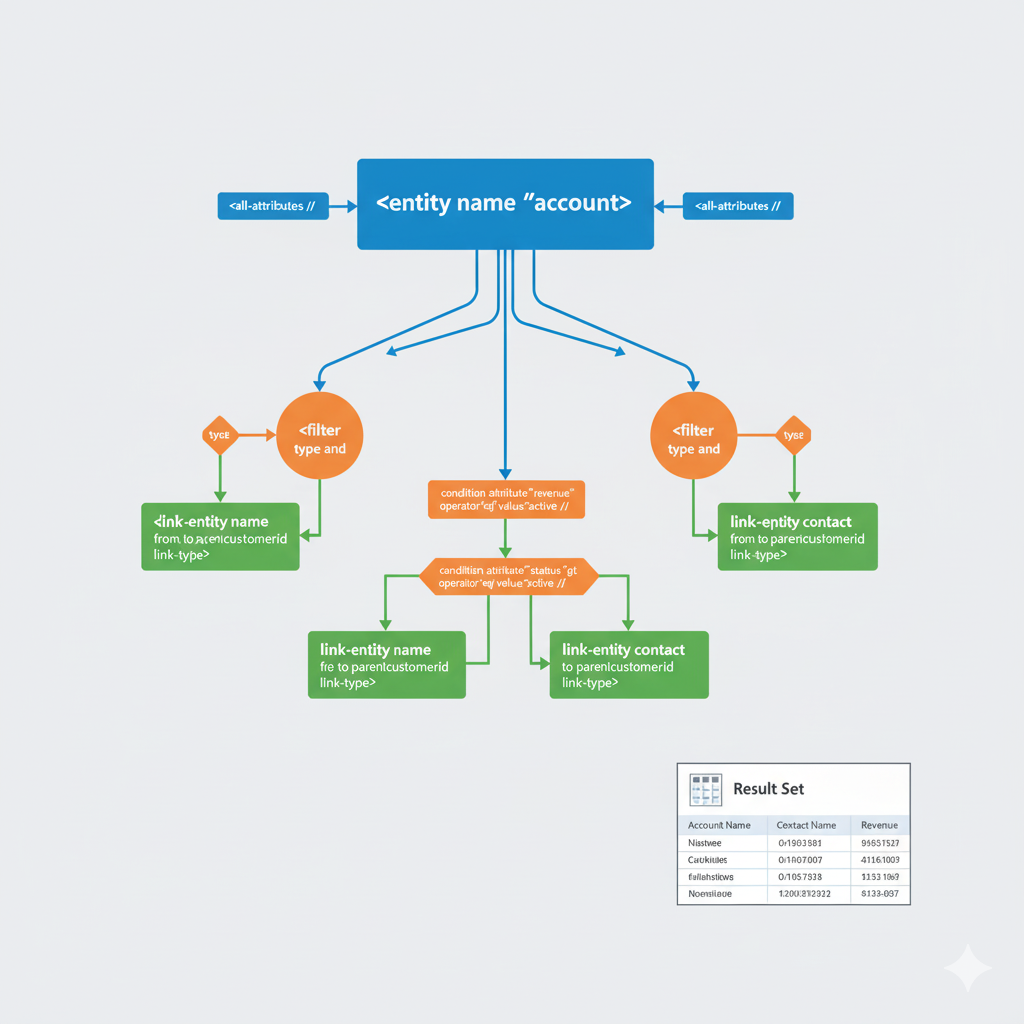
Understanding FetchXML
FetchXML is Dynamics 365's proprietary query language, more powerful than OData for complex scenarios.
Advantages:
- Aggregations (SUM, COUNT, AVG, MIN, MAX)
- Complex joins across multiple tables
- Grouping and having clauses
- Link entities with various join types
- Precise control over returned data
Building FetchXML Queries
Example 1: Get High Priority Cases by Customer with Statistics
FetchXML Query:
xml
<fetch version="1.0" output-format="xml-platform" mapping="logical" distinct="false" aggregate="true">
  <entity name="cr_supportcase">
    <attribute name="cr_supportcaseid" alias="case_count" aggregate="count"/>
    <attribute name="cr_priority" alias="avg_priority" aggregate="avg"/>
    <attribute name="cr_estimatedresolutiontime" alias="total_estimated_hours" aggregate="sum"/>
    <filter type="and">
      <condition attribute="cr_status" operator="in">
        <value>1</value>
        <value>2</value>
      </condition>
      <condition attribute="cr_priority" operator="ge" value="3"/>
    </filter>
    <link-entity name="contact" from="contactid" to="cr_customerid" link-type="inner" alias="customer">
      <attribute name="fullname" groupby="true" alias="customer_name"/>
      <attribute name="emailaddress1" groupby="true" alias="customer_email"/>
      <filter type="and">
        <condition attribute="statecode" operator="eq" value="0"/>
      </filter>
    </link-entity>
    <order alias="case_count" descending="true"/>
  </entity>
</fetch>
Power Automate Implementation:
Flow Name: GetCaseStatisticsByCustomer
Trigger: Copilot Studio

Actions:

1. Initialize Variable - FetchXML
   Type: String
   Value: [XML from above]

2. HTTP - Execute FetchXML
   Method: GET
   URI: https://[org].api.crm.dynamics.com/api/data/v9.2/cr_supportcases?fetchXml=@{encodeUriComponent(variables('FetchXML'))}
   Headers:
     Authorization: Bearer @{variables('AccessToken')}
     Accept: application/json
     OData-MaxVersion: 4.0

3. Parse JSON - Results
   Content: @{body('HTTP')?['value']}

4. Select - Format Results
   From: @{body('Parse_JSON')}
   Map:
   {
     "CustomerName": "@{item()?['customer_name']}",
     "CustomerEmail": "@{item()?['customer_email']}",
     "OpenCaseCount": @{item()?['case_count']},
     "AveragePriority": @{item()?['avg_priority']},
     "TotalEstimatedHours": @{item()?['total_estimated_hours']}
   }

5. Respond to Copilot Studio
Example 2: Complex Multi-Table Query
Scenario: Get all high-priority cases with customer details, assigned user info, and related activities
FetchXML:
xml
<fetch version="1.0" output-format="xml-platform" mapping="logical" distinct="true">
  <entity name="cr_supportcase">
    <attribute name="cr_supportcaseid"/>
    <attribute name="cr_name"/>
    <attribute name="cr_title"/>
    <attribute name="cr_description"/>
    <attribute name="cr_priority"/>
    <attribute name="cr_status"/>
    <attribute name="cr_createdon"/>
    <order attribute="cr_createdon" descending="true"/>
    <filter type="and">
      <condition attribute="cr_priority" operator="ge" value="3"/>
      <condition attribute="cr_status" operator="ne" value="4"/>
    </filter>

    <!-- Link to Customer (Contact) -->
    <link-entity name="contact" from="contactid" to="cr_customerid" link-type="inner" alias="customer">
      <attribute name="fullname"/>
      <attribute name="emailaddress1"/>
      <attribute name="telephone1"/>
      <attribute name="address1_city"/>
    </link-entity>

    <!-- Link to Assigned User -->
    <link-entity name="systemuser" from="systemuserid" to="cr_assignedto" link-type="outer" alias="assignee">
      <attribute name="fullname"/>
      <attribute name="internalemailaddress"/>
    </link-entity>

    <!-- Link to Related Activities (Phone Calls) -->
    <link-entity name="phonecall" from="regardingobjectid" to="cr_supportcaseid" link-type="outer" alias="phonecall">
      <attribute name="subject"/>
      <attribute name="createdon"/>
      <attribute name="actualdurationminutes"/>
      <filter type="and">
        <condition attribute="statecode" operator="eq" value="1"/>
      </filter>
    </link-entity>

    <!-- Link to Notes/Annotations -->
    <link-entity name="annotation" from="objectid" to="cr_supportcaseid" link-type="outer" alias="notes">
      <attribute name="notetext"/>
      <attribute name="createdon"/>
      <order attribute="createdon" descending="true"/>
      <top count="1"/>
    </link-entity>
  </entity>
</fetch>
Power Automate Flow with FetchXML:
Flow Name: GetDetailedCaseReport
Trigger: Copilot Studio

Input: Priority (Number, Optional - defaults to 3)

Actions:

1. Compose - Build Dynamic FetchXML
   Use expressions to inject priority value:
   @{replace(variables('FetchXMLTemplate'), '{{PRIORITY}}', string(triggerBody()['number']))}

2. HTTP - Execute FetchXML Query
   Method: GET
   URI: https://[org].api.crm.dynamics.com/api/data/v9.2/cr_supportcases?fetchXml=@{encodeUriComponent(outputs('Compose'))}
   Headers:
     Authorization: Bearer @{variables('AccessToken')}
     Accept: application/json
     Prefer: odata.include-annotations="*"

3. Parse JSON - Response
   Schema: [Auto-generated from sample]

4. Apply to Each - Process Records
   From: @{body('Parse_JSON')?['value']}

   Actions inside loop:
   a. Compose - Format Single Record
      {
        "CaseId": "@{items('Apply_to_each')?['cr_supportcaseid']}",
        "CaseNumber": "@{items('Apply_to_each')?['cr_name']}",
        "Title": "@{items('Apply_to_each')?['cr_title']}",
        "Priority": "@{items('Apply_to_each')?['cr_priority']}",
        "Status": "@{items('Apply_to_each')?['cr_status']}",
        "Customer": {
          "Name": "@{items('Apply_to_each')?['customer.fullname']}",
          "Email": "@{items('Apply_to_each')?['customer.emailaddress1']}",
          "Phone": "@{items('Apply_to_each')?['customer.telephone1']}",
          "City": "@{items('Apply_to_each')?['customer.address1_city']}"
        },
        "AssignedTo": {
          "Name": "@{items('Apply_to_each')?['assignee.fullname']}",
          "Email": "@{items('Apply_to_each')?['assignee.internalemailaddress']}"
        },
        "RecentActivity": "@{items('Apply_to_each')?['phonecall.subject']}",
        "LastNote": "@{items('Apply_to_each')?['notes.notetext']}"
      }

   b. Append to Array Variable - AllFormattedCases

5. Respond to Copilot Studio
   Return: @{variables('AllFormattedCases')}
Intelligent Insights with AI Analysis
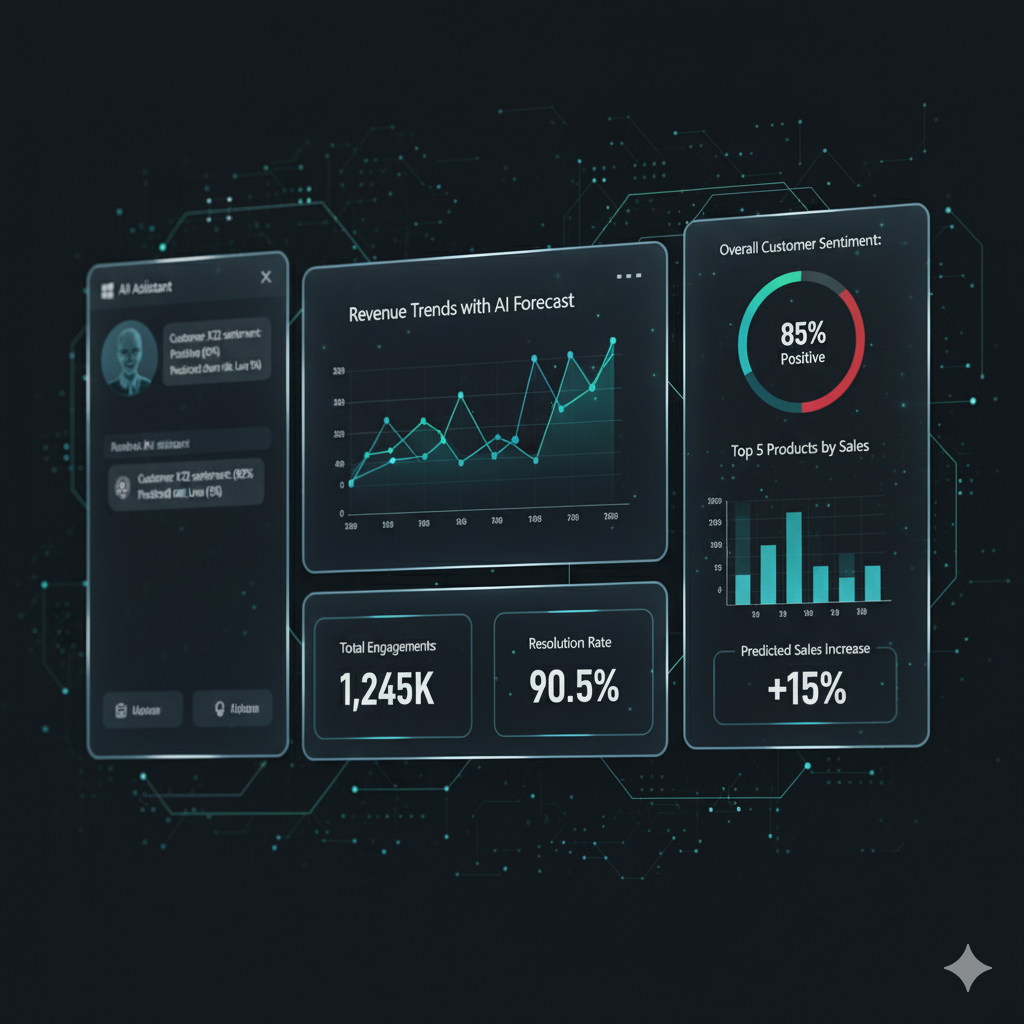
Leveraging Copilot for Data Analysis
Scenario 1: AI-Powered Case Summary and Recommendations
Power Automate Flow:
Flow Name: AnalyzeCaseWithAI
Trigger: Copilot Studio

Inputs:
├── CaseId (String)
└── AnalysisType (String: "summary" | "recommendations" | "sentiment")

Actions:

1. Get Support Case Details
   [Standard Dataverse query - includes description, notes, activities]
   Output: var_CaseData

2. Get Related Activities
   FetchXML query to get all emails, calls, appointments
   Output: var_Activities

3. Get All Notes/Comments
   List rows from annotations
   Output: var_Notes

4. Compose - Build AI Prompt
   Based on AnalysisType:

   For "summary":
   "Analyze this support case and provide a concise executive summary:

   Case Details:
   - Title: @{var_CaseData.Title}
   - Description: @{var_CaseData.Description}
   - Priority: @{var_CaseData.PriorityLabel}
   - Status: @{var_CaseData.StatusLabel}
   - Days Open: @{daysSince(var_CaseData.CreatedOn)}

   Recent Activities:
   @{join(var_Activities, ', ')}

   Notes History:
   @{join(var_Notes, '\n')}

   Provide:
   1. Brief summary of the issue
   2. Current status assessment
   3. Key actions taken
   4. Outstanding items"

   For "recommendations":
   "Based on this support case data, provide actionable recommendations:

   [Same case data as above]

   Consider:
   - Time elapsed vs. estimated resolution time
   - Priority level
   - Customer interaction history
   - Similar resolved cases

   Provide:
   1. Next best actions
   2. Escalation recommendations (if needed)
   3. Resource allocation suggestions
   4. Estimated time to resolution"

   For "sentiment":
   "Analyze the sentiment and urgency of this support case:

   [Case data]

   Assess:
   1. Customer sentiment (positive/neutral/negative)
   2. Urgency level
   3. Risk of escalation
   4. Customer satisfaction indicators"

5. HTTP - Call Azure OpenAI (or use Copilot Studio's built-in AI)
   Method: POST
   URI: https://[your-openai-resource].openai.azure.com/openai/deployments/[model]/chat/completions?api-version=2024-02-15-preview
   Headers:
     api-key: @{variables('OpenAIKey')}
     Content-Type: application/json

   Body:
   {
     "messages": [
       {
         "role": "system",
         "content": "You are an expert support case analyst for Dynamics 365 CRM. Provide clear, actionable insights based on case data."
       },
       {
         "role": "user",
         "content": "@{outputs('Compose_Prompt')}"
       }
     ],
     "temperature": 0.7,
     "max_tokens": 1000
   }

6. Parse JSON - AI Response
   Content: @{body('HTTP')}
   Extract: choices[0].message.content

7. Store AI Analysis
   Create new record in custom table: cr_caseanalysis
   Fields:
     cr_caseid: @{var_CaseData.CaseId}
     cr_analysistype: @{triggerBody()['AnalysisType']}
     cr_aianalysis: @{body('Parse_JSON')?['choices'][0]['message']['content']}
     cr_analyzedon: @{utcNow()}
     cr_modelused: "gpt-4"

8. Respond to Copilot Studio
   {
     "CaseNumber": "@{var_CaseData.CaseNumber}",
     "AnalysisType": "@{triggerBody()['AnalysisType']}",
     "Analysis": "@{body('Parse_JSON')?['choices'][0]['message']['content']}",
     "GeneratedAt": "@{utcNow()}"
   }
Copilot Studio Implementation:
Topic: AI Case Analysis

Node 1: Question
"Please provide the case number you'd like to analyze:"
└── Save to: var_CaseNumber

Node 2: Question - Choice
"What type of analysis would you like?"
Options:
  - 📊 Executive Summary
  - 💡 Action Recommendations
  - 😊 Sentiment Analysis
  - 📈 Full Report (All Above)
└── Save to: var_AnalysisChoice

Node 3: Message
"🤖 Analyzing case data with AI... This may take a moment."

Node 4: Condition - Analysis Type Routing
Switch on var_AnalysisChoice:

  Case "Executive Summary":
    Node 5a: Action - AnalyzeCaseWithAI
    Inputs: CaseId: var_CaseNumber, AnalysisType: "summary"
    Output: var_AIResult

  Case "Action Recommendations":
    Node 5b: Action - AnalyzeCaseWithAI
    Inputs: CaseId: var_CaseNumber, AnalysisType: "recommendations"
    Output: var_AIResult

  Case "Sentiment Analysis":
    Node 5c: Action - AnalyzeCaseWithAI
    Inputs: CaseId: var_CaseNumber, AnalysisType: "sentiment"
    Output: var_AIResult

  Case "Full Report":
    Node 5d: Parallel Actions (Run all three)
    └── Collect all outputs

Node 6: Adaptive Card - Display Results
Card Design:
  Header: "🤖 AI Analysis - Case {var_CaseNumber}"
  Body:
    - Analysis Type: {var_AIResult.AnalysisType}
    - Generated: {var_AIResult.GeneratedAt}
    -
    - {var_AIResult.Analysis}
  Actions:
    - Button: "Generate Another Analysis"
    - Button: "Update Case Based on Recommendations"
    - Button: "Export Report"
    - Button: "Share with Team"

Node 7: Question - Choice
"Would you like to take any action based on this analysis?"
Options:
  - Update case priority
  - Assign to different agent
  - Add notes to case
  - Schedule follow-up
  - No action needed
└── Route to appropriate sub-topics
Scenario 2: Predictive Analysis - Case Resolution Time Estimation
Power Automate Flow:
Flow Name: PredictCaseResolutionTime
Trigger: Copilot Studio

Input: CaseId (String)

Actions:

1. Get Current Case Details
   Table: cr_supportcases
   Output: var_CurrentCase

2. List Historical Cases - Similar Profile
   FetchXML query:
   - Same category
   - Same priority
   - Already resolved (status = 3 or 4)
   - Created within last 6 months
   Output: var_HistoricalCases

3. Apply to Each - Calculate Resolution Times
   From: var_HistoricalCases

   Calculate:
   Days to Resolution = DaysBetween(CreatedOn, ResolvedOn)

   Store in array: var_ResolutionTimes

4. Compose - Statistical Analysis
   {
     "AverageResolutionDays": @{average(var_ResolutionTimes)},
     "MedianResolutionDays": @{median(var_ResolutionTimes)},
     "MinResolutionDays": @{min(var_ResolutionTimes)},
     "MaxResolutionDays": @{max(var_ResolutionTimes)},
     "SampleSize": @{length(var_ResolutionTimes)}
   }

5. Compose - AI Prediction Prompt
   "Based on historical data and current case details, predict resolution time:

   Current Case:
   - Category: @{var_CurrentCase.Category}
   - Priority: @{var_CurrentCase.Priority}
   - Description Length: @{length(var_CurrentCase.Description)}
   - Days Open: @{daysSince(var_CurrentCase.CreatedOn)}

   Historical Data (Similar Cases):
   - Average Resolution: @{outputs('Statistical_Analysis').AverageResolutionDays} days
   - Median Resolution: @{outputs('Statistical_Analysis').MedianResolutionDays} days
   - Sample Size: @{outputs('Statistical_Analysis').SampleSize} cases
   - Range: @{outputs('Statistical_Analysis').MinResolutionDays} to @{outputs('Statistical_Analysis').MaxResolutionDays} days

   Provide:
   1. Estimated days to resolution (with confidence level)
   2. Factors that could accelerate resolution
   3. Potential blockers
   4. Recommendation for resource allocation"

6. HTTP - Call Azure OpenAI
   [Similar to previous example]

7. Parse and Format Response
   Extract prediction and reasoning

8. Update Case with Prediction
   Update cr_supportcase:
   - cr_predictedresolutiondays: [calculated value]
   - cr_predictionconfidence: [percentage]
   - cr_predictiondate: @{utcNow()}

9. Respond to Copilot Studio
   Return prediction with explanation
Pattern: Batch Operations for Efficiency
When dealing with multiple records, use batch operations:
Power Automate Flow - Batch Update:
Flow Name: BatchUpdateCasesByFilter
Trigger: Copilot Studio

Inputs:
├── FilterCriteria (String)
├── UpdateFields (Object)
└── MaxRecords (Number, default: 100)

Actions:

1. List Rows - Get Records to Update
   Filter: @{triggerBody()['FilterCriteria']}
   Top: @{triggerBody()['MaxRecords']}
   Output: var_RecordsToUpdate

2. Initialize Variable - BatchRequests
   Type: Array
   Value: []

3. Apply to Each - Build Batch Requests
   From: @{var_RecordsToUpdate}

   Append to BatchRequests:
   {
     "id": "@{guid()}",
     "method": "PATCH",
     "url": "/cr_supportcases(@{items('Apply_to_each')?['cr_supportcaseid']})",
     "headers": {
       "Content-Type": "application/json"
     },
     "body": @{triggerBody()['UpdateFields']}
   }

4. HTTP - Execute $batch Request
   Method: POST
   URI: https://[org].api.crm.dynamics.com/api/data/v9.2/$batch
   Headers:
     Authorization: Bearer @{variables('AccessToken')}
     Content-Type: application/json

   Body:
   {
     "requests": @{variables('BatchRequests')}
   }

5. Parse JSON - Batch Response
   Extract successful and failed updates

6. Compose - Summary
   {
     "TotalRecords": @{length(var_RecordsToUpdate)},
     "SuccessCount": @{length(filter(outputs('Parse_Batch'), lambda => item().status == 200))},
     "FailureCount": @{length(filter(outputs('Parse_Batch'), lambda => item().status != 200))},
     "FailedRecords": @{filter outputs where status != 200}
   }

7. Respond to Copilot Studio
Error Handling and Best Practices
Comprehensive Error Handling Pattern
Power Automate Flow Structure:
Flow Name: [Any Operation]

1. Scope - Try
   All main actions go here

   Actions:
   ├── Validate inputs
   ├── Execute operation
   └── Format response

2. Scope - Catch (Configure to run on: has failed or has timed out)

   Actions:
   a. Compose - Error Details
      {
        "ErrorMessage": "@{body('action_name')?['error']['message']}",
        "ErrorCode": "@{body('action_name')?['error']['code']}",
        "Timestamp": "@{utcNow()}",
        "FlowRunId": "@{workflow()?['run']['name']}",
        "Action": "@{actions('action_name')?['name']}"
      }

   b. Condition - Error Type Routing
      Switch on error code:

      Case "Unauthorized" (401):
        └── Message: "Authentication failed. Please re-authenticate."

      Case "NotFound" (404):
        └── Message: "Record not found. Please verify the ID."

      Case "BadRequest" (400):
        └── Message: "Invalid data provided. Please check your inputs."

      Case "RateLimitExceeded" (429):
        └── Wait 60 seconds, then retry

      Case "InternalServerError" (500):
        └── Log to Application Insights
        └── Message: "System error. Please try again later."

      Default:
        └── Message: "An unexpected error occurred."

   c. Send Email to Admin (for critical errors)
      To: support@cloudverve.in
      Subject: "Copilot Flow Error - @{workflow()?['run']['name']}"
      Body: @{outputs('Compose_Error_Details')}

   d. Log to Application Insights
      Use HTTP action to send telemetry

3. Scope - Finally (Configure to run after: Catch)

   Actions:
   a. Compose - Final Response
      IF Scope_Try succeeded
        └── Return success response
      ELSE
        └── Return formatted error message

   b. Respond to Copilot Studio
      Return: @{outputs('Compose_Final_Response')}
Retry Logic with Exponential Backoff
Implementation:
Flow Action Configuration:

Settings for HTTP actions:
├── Timeout: PT30S (30 seconds)
├── Retry Policy:
│   ├── Type: Exponential
│   ├── Count: 4
│   ├── Interval: PT5S (5 seconds)
│   ├── Maximum Interval: PT1H (1 hour)
│   └── Minimum Interval: PT5S
└── Status codes to retry: 408, 429, 500, 502, 503, 504

For Dataverse actions:
├── Retry count: 3
├── Retry interval: 10 seconds
└── Only retry on transient errors
Input Validation
Power Automate - Validation Pattern:
Flow Name: [Any Operation]

Actions:

1. Initialize Variable - ValidationErrors
   Type: Array
   Value: []

2. Condition - Validate Required Fields
   IF CaseId is null or empty
     Append to ValidationErrors: "Case ID is required"

3. Condition - Validate Format
   IF CaseId does not match pattern
     Append to ValidationErrors: "Invalid Case ID format"

4. Condition - Validate Choice Values
   IF Priority not in [1,2,3,4]
     Append to ValidationErrors: "Invalid priority value"

5. Condition - Validate String Length
   IF length(Description) > 5000
     Append to ValidationErrors: "Description too long (max 5000 characters)"

6. Condition - Check Validation Results
   IF length(ValidationErrors) > 0

   THEN:
     Respond with error:
     {
       "Success": false,
       "Errors": @{variables('ValidationErrors')},
       "Message": "Please correct the following errors"
     }
     Terminate flow

   ELSE:
     Continue with operation
Performance Optimization Best Practices
1. Selective Column Retrieval
Good Practice:
List Rows:
  Select Columns: cr_supportcaseid, cr_name, cr_status
  (Only retrieve what you need)

Bad Practice:
List Rows:
  Select Columns: [empty - retrieves all columns]
  (Unnecessary data transfer and processing)
2. Pagination for Large Datasets
Flow: GetAllCases (with pagination)

Actions:

1. Initialize Variable - AllRecords
   Type: Array

2. Initialize Variable - NextLink
   Type: String
   Value: [Initial API URL]

3. Do Until - NextLink is null

   Actions:
   a. HTTP - Get Page
      URI: @{variables('NextLink')}

   b. Parse JSON - Response

   c. Append Array - Current Page Results
      To: AllRecords
      From: @{body('Parse_JSON')?['value']}

   d. Set Variable - NextLink
      Value: @{body('Parse_JSON')?['@odata.nextLink']}

4. Process AllRecords
3. Caching Strategy
For frequently accessed, rarely changing data:

1. Check Azure Table Storage cache
   └── If exists and not expired: Return cached data

2. If cache miss:
   └── Query Dataverse
   └── Store in cache with TTL (e.g., 15 minutes)
   └── Return data

Implementation:
Use Azure Table Storage or Redis Cache
Set appropriate expiration policies
4. Parallel Processing
When operations are independent:

Use Parallel Branch in Power Automate:

Branch 1: Get Case Details
Branch 2: Get Customer Info
Branch 3: Get Related Activities
Branch 4: Get Historical Data

Wait for all branches to complete
Combine results
Return to Copilot Studio

Benefits:
- Reduced total execution time
- Better resource utilization
Security Best Practices
1. Row-Level Security (RLS)
Dataverse Security Configuration:
Business Scenario: Support agents should only see cases assigned to them

Implementation:

1. Create Security Role: "Support Agent - Limited"

   Table Permissions (cr_supportcase):
   ├── Create: Organization (can create any)
   ├── Read: User (only assigned to them)
   ├── Write: User (only assigned to them)
   ├── Delete: None
   ├── Append: User
   └── Append To: User

2. In Power Automate Flow:

   Use "List rows (current environment)" action with:
   Filter Rows: _cr_assignedto_value eq @{variables('CurrentUserGUID')}

   This ensures users only retrieve their own cases

3. In Copilot Studio:

   Always pass authenticated user context:
   var_CurrentUserId from authentication
2. Field-Level Security
Implementation:
Scenario: Hide sensitive customer financial data

1. In Dynamics 365:
   ├── Settings → Security → Field Security Profiles
   ├── Create: "Support Agent - Standard Access"
   ├── Add secured fields: cr_creditlimit, cr_outstandingbalance
   └── Assign profile to support agent role

2. In Power Automate:

   When querying:
   - Fields with security return null for unauthorized users
   - Always check for null before displaying

   Condition:
   IF cr_creditlimit is not null
     THEN: Display value
     ELSE: "Not authorized to view"
3. Audit Logging
Implement comprehensive audit trail:
Flow: [Any Update Operation]

After successful update:

1. Create Audit Log Record
   Table: cr_auditlog (custom table)
   Fields:
     cr_operation: "Update"
     cr_tablename: "cr_supportcase"
     cr_recordid: @{var_CaseId}
     cr_userid: @{var_CurrentUserId}
     cr_username: @{var_CurrentUserName}
     cr_timestamp: @{utcNow()}
     cr_changedfields: @{json(string(UpdatedFields))}
     cr_oldvalues: @{json(string(BeforeUpdate))}
     cr_newvalues: @{json(string(AfterUpdate))}
     cr_ipaddress: @{triggerBody()?['ipaddress']}
     cr_source: "Copilot Studio"
4. Data Masking for Sensitive Information
Power Automate Pattern:
Function: MaskSensitiveData

Actions:

1. Compose - Masked Email
   Input: customer@example.com
   Output: c******r@e******.com
   Expression:
   concat(
     substring(variables('Email'), 0, 1),
     '******',
     substring(variables('Email'), indexOf(variables('Email'), '@') - 1, 1),
     substring(variables('Email'), indexOf(variables('Email'), '@'), 2),
     '******',
     substring(variables('Email'), lastIndexOf(variables('Email'), '.'), length(variables('Email')))
   )

2. Compose - Masked Phone
   Input: +1-555-123-4567
   Output: +1-555-***-**67
   Expression:
   concat(
     substring(variables('Phone'), 0, length(variables('Phone')) - 4),
     '***-**',
     substring(variables('Phone'), length(variables('Phone')) - 2, 2)
   )

3. Compose - Masked Credit Card
   Input: 4532-1234-5678-9010
   Output: ****-****-****-9010
   Expression:
   concat('****-****-****-', substring(variables('CardNumber'), length(variables('CardNumber')) - 4, 4))
Real-World Use Cases
Use Case 1: Intelligent Customer Service Bot
Scenario: Customer calls to check case status and get updates
Copilot Studio Implementation:
Topic: Complete Customer Service Flow

Node 1: Greeting
"👋 Hi! I'm your support assistant. I can help you with:"
- Check case status
- Create new case
- Update existing case
- Get case history

Node 2: Authenticate User
[Use OAuth or email verification]
Output: var_AuthenticatedCustomerId

Node 3: Action - GetCustomerActiveCases
Input: var_AuthenticatedCustomerId
Output: var_CustomerCases (Array)

Node 4: Condition
IF var_CustomerCases.Count > 0

THEN:
  Node 5: Message with Cards
  "📋 You have {var_CustomerCases.Count} active case(s):"

  [For Each case in var_CustomerCases]
  Adaptive Card:
    Title: {case.CaseNumber} - {case.Title}
    Body:
      - Status: {case.StatusLabel}
      - Priority: {case.PriorityLabel}
      - Created: {case.CreatedOn}
      - Last Updated: {case.ModifiedOn}
    Actions:
      - View Details
      - Add Comment
      - Request Update

  Node 6: Question - Choice
  "What would you like to do?"
  - View specific case details
  - Get AI analysis of my cases
  - Create new case
  - Speak to an agent

Node 7: Route Based on Choice

  If "View specific case details":
    Node 8: Question
    "Which case number?"
    └── var_SelectedCaseNumber

    Node 9: Action - GetDetailedCaseInfo
    └── Display full details with timeline

  If "Get AI analysis":
    Node 10: Action - AnalyzeCustomerCases
    └── Show AI-generated insights and recommendations

  If "Create new case":
    └── Route to Create Case topic

  If "Speak to an agent":
    Node 11: Action - CreateEscalationCase
    Node 12: Action - NotifyAvailableAgent
    Node 13: Message
    "🔄 Transferring you to an agent. Estimated wait time: 2 minutes"

ELSE:
  Node 14: Message
  "You don't have any active cases. Would you like to create one?"
Use Case 2: Internal IT Helpdesk with Dataverse Integration
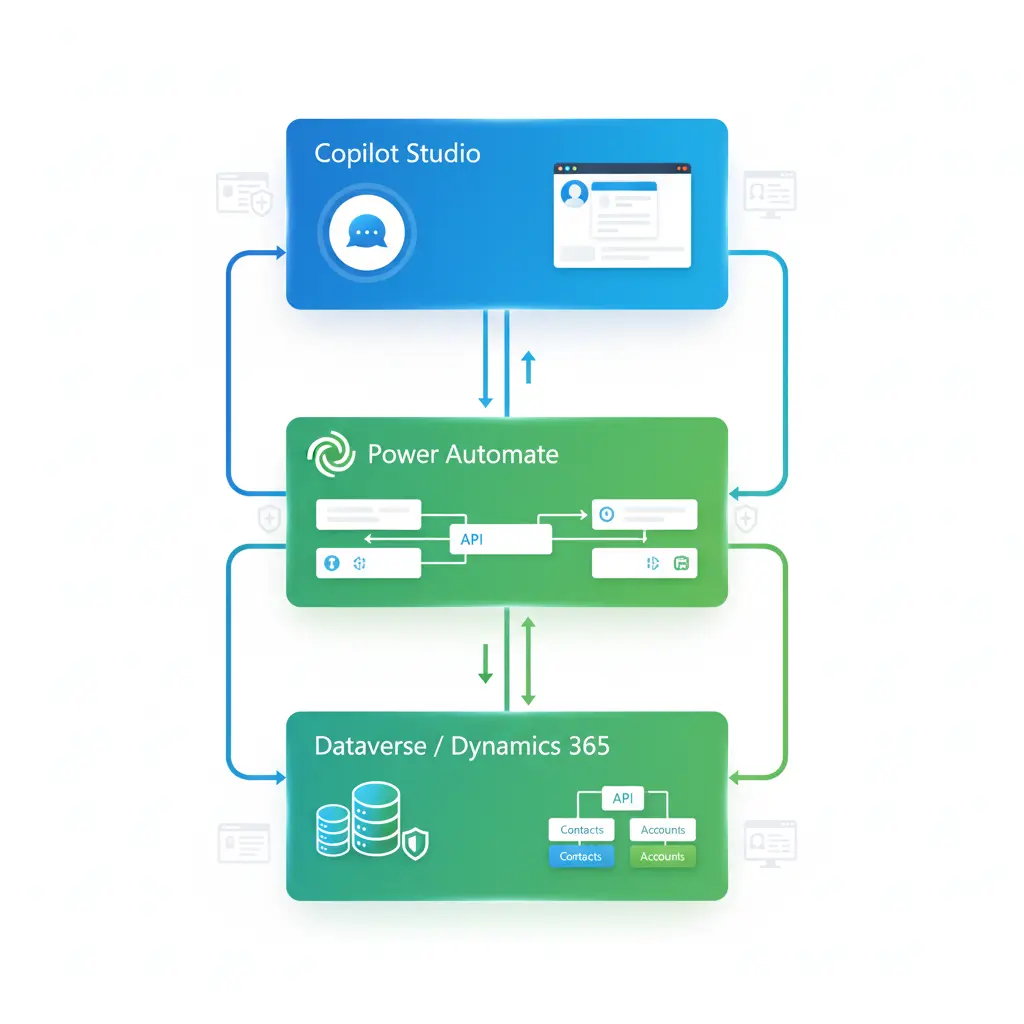
Scenario: Employees request IT support through Teams
Architecture:
Microsoft Teams
    ↓
Copilot Studio Bot
    ↓
Power Automate Flows
    ├── Create ServiceNow Ticket (via connector)
    ├── Log in Dynamics 365 (cr_itsupportcase)
    ├── Update Azure AD (password reset)
    ├── Send notification to IT team (Teams message)
    └── Update employee record (last support date)
Implementation:
Topic: IT Support Request

Node 1: Question - Choice
"What do you need help with?"
- 🔐 Password Reset
- 💻 Software Installation
- 🌐 VPN Access
- 📧 Email Issues
- 🖥️ Hardware Request
- 🆘 Other Issue
└── var_RequestType

Node 2: Condition - Route by Request Type

If "Password Reset":
  Node 3: Confirm Identity
  [Multi-factor verification]

  Node 4: Action - ResetAzureADPassword
  Integration with Microsoft Graph API

  Node 5: Action - LogITCase
  Create record in cr_itsupportcase
  Link to user record

  Node 6: Message
  "✅ Password reset initiated. You'll receive an email shortly."

If "Software Installation":
  Node 7: Question - Choice
  "Which software?"
  [Dynamic list from Dataverse: cr_approvedsoftware]
  └── var_SoftwareRequested

  Node 8: Action - CheckUserEntitlement
  Query Dataverse: Does user's role allow this software?

  Node 9: Condition
  IF Entitled:
    Node 10: Action - CreateServiceNowTicket
    Node 11: Action - LogITCase (Dataverse)
    Node 12: Message
    "✅ Request approved. IT will install within 24 hours."
  ELSE:
    Node 13: Action - CreateApprovalRequest
    Send to manager in Dataverse
    Node 14: Message
    "📋 Request sent to your manager for approval."

If "Other Issue":
  Node 15: Question
  "Please describe your issue:"
  └── var_IssueDescription

  Node 16: Action - AI Classification
  Use AI to categorize and assess priority

  Node 17: Action - CreateITCase
  Dataverse: cr_itsupportcase
  Fields:
    - Description: var_IssueDescription
    - Category: var_AICategory
    - Priority: var_AIPriority
    - RequestedBy: var_CurrentUser
    - Status: New

  Node 18: Action - RouteToAppropriateteam
  Query Dataverse: cr_itsupportteam
  Based on category, assign to correct team

  Node 19: Message
  "✅ Case {var_CaseNumber} created.
  Priority: {var_Priority}
  Assigned to: {var_TeamName}
  Estimated response: {var_EstimatedResponse}"
Use Case 3: Sales Pipeline Assistant
Scenario: Sales reps query opportunities, update stages, get AI insights
Copilot Studio Topics:
Topic: Pipeline Management

Node 1: Authenticate Sales Rep
└── var_SalesRepId

Node 2: Action - GetMyPipeline
Power Automate:
  - Query opportunities where owner = var_SalesRepId
  - Status = Open
  - Include related accounts, contacts
  - Calculate: Total value, weighted value, aging

Output: var_MyOpportunities

Node 3: Message - Pipeline Dashboard
"📊 Your Pipeline Summary:

Total Opportunities: {var_MyOpportunities.Count}
Total Value: ${var_MyOpportunities.TotalValue}
Weighted Value: ${var_MyOpportunities.WeightedValue}

By Stage:
🎯 Qualify: {count} (${value})
📞 Develop: {count} (${value})
💼 Propose: {count} (${value})
🤝 Close: {count} (${value})"

Node 4: Question - Choice
"What would you like to do?"
- View opportunities by stage
- Get AI win probability analysis
- Update opportunity stage
- Add activity to opportunity
- View aging opportunities
└── var_Action

If "Get AI win probability":
  Node 5: Action - AIOpportunityAnalysis
  For each opportunity:
    - Analyze historical win/loss patterns
    - Compare to similar deals
    - Assess engagement metrics
    - Calculate probability score

  Node 6: Display AI Insights
  [Ranked list with win probability and recommendations]

If "Update opportunity stage":
  Node 7: Question - Choice
  "Select opportunity:"
  [Dynamic list from var_MyOpportunities]
  └── var_SelectedOpp

  Node 8: Question - Choice
  "Move to which stage?"
  - Qualify
  - Develop
  - Propose
  - Close
  - Close as Won
  - Close as Lost
  └── var_NewStage

  Node 9: Action - UpdateOpportunityStage
  Dataverse update with stage history logging

  Node 10: Message
  "✅ Opportunity updated successfully!"
Advanced Techniques
Technique 1: Dynamic Schema Queries
Scenario: Query any table dynamically based on user input
Power Automate Flow:
Flow Name: DynamicTableQuery
Trigger: Copilot Studio

Inputs:
├── TableName (String)
├── FilterField (String)
├── FilterValue (String)
└── SelectColumns (Array)

Actions:

1. Compose - Build Dynamic OData URL
   Expression:
   concat(
     'https://', variables('OrgUrl'),
     '/api/data/v9.2/',
     toLower(triggerBody()['TableName']),
     's?',
     '$filter=', triggerBody()['FilterField'],
     ' eq ''', triggerBody()['FilterValue'], '''',
     '&$select=', join(triggerBody()['SelectColumns'], ',')
   )

2. HTTP - Execute Query
   Method: GET
   URI: @{outputs('Compose')}
   Headers:
     Authorization: Bearer @{variables('AccessToken')}

3. Parse JSON - Results
   Schema: Dynamic

4. Respond to Copilot Studio
   Return: @{body('Parse_JSON')?['value']}
Technique 2: Relationship Traversal
Complex Related Data Retrieval:
FetchXML for Multi-Level Relationships:
xml
<fetch version="1.0" mapping="logical" distinct="true">
  <entity name="cr_supportcase">
    <attribute name="cr_name"/>
    <attribute name="cr_title"/>

    <!-- Level 1: Customer -->
    <link-entity name="contact" from="contactid" to="cr_customerid" alias="customer">
      <attribute name="fullname"/>

      <!-- Level 2: Customer's Account -->
      <link-entity name="account" from="accountid" to="parentcustomerid" alias="account">
        <attribute name="name"/>
        <attribute name="industrycode"/>

        <!-- Level 3: Account's Primary Contact -->
        <link-entity name="contact" from="contactid" to="primarycontactid" alias="accountprimarycontact">
          <attribute name="fullname"/>
          <attribute name="emailaddress1"/>
        </link-entity>

        <!-- Level 3: Account's Opportunities -->
        <link-entity name="opportunity" from="parentaccountid" to="accountid" alias="accountopps">
          <attribute name="name"/>
          <attribute name="estimatedvalue"/>
          <filter>
            <condition attribute="statecode" operator="eq" value="0"/>
          </filter>
        </link-entity>
      </link-entity>

      <!-- Level 2: Customer's Other Cases -->
      <link-entity name="cr_supportcase" from="cr_customerid" to="contactid" alias="othercases">
        <attribute name="cr_name"/>
        <attribute name="cr_status"/>
        <filter>
          <condition attribute="cr_status" operator="ne" value="4"/>
        </filter>
      </link-entity>
    </link-entity>

    <!-- Level 1: Related Activities -->
    <link-entity name="activitypointer" from="regardingobjectid" to="cr_supportcaseid" alias="activities">
      <attribute name="subject"/>
      <attribute name="activitytypecode"/>
      <attribute name="scheduledend"/>
      <filter>
        <condition attribute="statecode" operator="eq" value="0"/>
      </filter>
    </link-entity>
  </entity>
</fetch>
Technique 3: Calculated Fields and Rollup Summaries
Power Automate - Calculate Aggregates:
Flow Name: CalculateCaseMetrics
Trigger: Copilot Studio

Input: CustomerId (GUID)

Actions:

1. List Support Cases
   Filter: _cr_customerid_value eq '@{triggerBody()['CustomerId']}'
   Select: cr_supportcaseid, cr_status, cr_priority, cr_createdon, cr_resolvedon

2. Initialize Variables
   ├── TotalCases: 0
   ├── OpenCases: 0
   ├── ResolvedCases: 0
   ├── HighPriorityCases: 0
   ├── AverageResolutionDays: 0
   └── ResolutionTimes: []

3. Apply to Each - Cases
   From: @{outputs('List_Support_Cases')?['body/value']}

   Actions:
   a. Increment TotalCases

   b. Switch on cr_status:
      Case 1, 2: Increment OpenCases
      Case 3, 4:
        - Increment ResolvedCases
        - Calculate: days = DaysBetween(cr_createdon, cr_resolvedon)
        - Append days to ResolutionTimes array

   c. If cr_priority >= 3:
      Increment HighPriorityCases

4. Calculate Average Resolution
   IF length(ResolutionTimes) > 0
     Set AverageResolutionDays: div(sum(ResolutionTimes), length(ResolutionTimes))

5. Compose - Metrics Object
   {
     "CustomerId": "@{triggerBody()['CustomerId']}",
     "TotalCases": @{variables('TotalCases')},
     "OpenCases": @{variables('OpenCases')},
     "ResolvedCases": @{variables('ResolvedCases')},
     "HighPriorityCases": @{variables('HighPriorityCases')},
     "AverageResolutionDays": @{variables('AverageResolutionDays')},
     "ResolutionRate": @{div(mul(variables('ResolvedCases'), 100), variables('TotalCases'))},
     "HighPriorityRate": @{div(mul(variables('HighPriorityCases'), 100), variables('TotalCases'))}
   }

6. Store Metrics in Dataverse
   Update or Create record in: cr_customermetrics
   (Maintains historical metrics data)

7. Respond to Copilot Studio
Testing and Debugging
Testing Strategy for Dataverse Integration
1. Unit Testing Individual Flows
Test Plan: CreateSupportCase Flow

Test Case 1: Valid Input
Input:
  Title: "Test Case"
  Description: "Test Description"
  Priority: 2
  Category: 1
  CustomerEmail: "valid@customer.com"

Expected Output:
  Status: "Success"
  CaseId: [GUID]
  CaseNumber: [Auto-generated]

Validation:
✓ Record created in Dataverse
✓ All fields populated correctly
✓ Lookup to customer resolved
✓ Audit log entry created

Test Case 2: Invalid Customer Email
Input:
  CustomerEmail: "nonexistent@test.com"

Expected Output:
  Status: "Error"
  Message: "Customer not found"

Validation:
✓ No record created
✓ Error message returned
✓ No partial data saved

Test Case 3: Missing Required Fields
Input:
  Title: ""
  Description: "Test"

Expected Output:
  Status: "Error"
  Message: "Title is required"

Validation:
✓ Validation triggered
✓ Appropriate error message

Test Case 4: Special Characters
Input:
  Description: "Test with <script>alert('xss')</script>"

Expected Output:
  Status: "Success"
  Description: [Sanitized input]

Validation:
✓ Input sanitized
✓ No script execution
✓ Safe storage
2. Integration Testing
Test Scenario: End-to-End Case Creation via Copilot

Steps:
1. User initiates conversation
2. Copilot requests case details
3. User provides all information
4. Flow creates case in Dataverse
5. Confirmation returned to user
6. User receives email notification

Test Data:
- Multiple user roles
- Various case types
- Different priority levels
- Edge cases (long descriptions, special chars)

Validation Points:
✓ Conversation flow is natural
✓ All validations work correctly
✓ Dataverse record accurate
✓ Email sent successfully
✓ Response time < 5 seconds
✓ Error handling graceful
3. Debugging Techniques
Power Automate Debug Pattern:
Flow Name: [Any Flow]

Debug Actions to Add:

1. After Each Major Step:
   Compose - Debug Checkpoint
   {
     "Step": "Step Name",
     "Timestamp": "@{utcNow()}",
     "Data": {
       "Variable1": "@{variables('var1')}",
       "Output": "@{outputs('PreviousAction')}"
     }
   }

2. Store Debug Info in Variable Array:
   Append to Array: DebugLog
   Value: @{outputs('Compose_Debug')}

3. At Flow End:
   Condition: If Debug Mode Enabled
   THEN:
     - Send email with DebugLog
     - OR Post to Azure Application Insights
     - OR Store in Dataverse debug table

4. Use Try-Catch Pattern:
   Scope: Try
     [All actions]

   Scope: Catch
     Compose - Error Context
     {
       "Error": "@{result('Scope_Try')}",
       "DebugLog": "@{variables('DebugLog')}",
       "Inputs": "@{triggerBody()}"
     }
Copilot Studio Testing:
Test Scenarios:

1. Happy Path Testing
   - Follow expected conversation flow
   - Provide valid inputs
   - Verify successful outcomes

2. Error Path Testing
   - Invalid inputs
   - System unavailable
   - Timeout scenarios
   - Authentication failures

3. Edge Cases
   - Very long inputs
   - Special characters
   - Multiple rapid inputs
   - Context switching

4. Performance Testing
   - Large dataset queries
   - Concurrent users
   - Complex calculations
   - Multiple API calls

Tools:
- Power Platform Test Studio
- Copilot Studio Test Chat
- Application Insights
- Flow Run History
Monitoring and Analytics
Setting Up Comprehensive Monitoring
1. Application Insights Integration
Power Automate Configuration:
Flow Name: [Production Flow]

Actions:

1. Initialize Variable - TelemetryClient
   [Connection to Application Insights]

2. At Flow Start:
   HTTP - Log Start Event
   POST to Application Insights
   {
     "name": "FlowExecution",
     "properties": {
       "FlowName": "@{workflow()?['tags']['flowDisplayName']}",
       "RunId": "@{workflow()?['run']['name']}",
       "TriggerType": "CopilotStudio",
       "UserId": "@{triggerBody()?['UserId']}",
       "Event": "Started"
     }
   }

3. After Each Critical Operation:
   HTTP - Log Operation Event
   {
     "name": "DataverseOperation",
     "properties": {
       "Operation": "CreateCase",
       "Table": "cr_supportcase",
       "Duration": "@{div(ticks(utcNow()) - ticks(variables('StartTime')), 10000)}",
       "Success": true
     }
   }

4. At Flow End:
   HTTP - Log Completion Event
   {
     "name": "FlowExecution",
     "properties": {
       "Event": "Completed",
       "Duration": "@{div(ticks(utcNow()) - ticks(variables('StartTime')), 10000)}",
       "Status": "Success"
     }
   }

5. On Error:
   HTTP - Log Error Event
   {
     "name": "FlowError",
     "properties": {
       "ErrorMessage": "@{body('Action')?['error']['message']}",
       "ErrorCode": "@{body('Action')?['error']['code']}",
       "StackTrace": "@{result('Scope_Try')}"
     }
   }
2. Custom Analytics Dashboard
Create Dataverse Table: cr_copilotanalytics
Schema:
├── cr_conversationid (Text)
├── cr_userid (Lookup to User)
├── cr_topicname (Text)
├── cr_intent (Text)
├── cr_sentiment (Choice: Positive, Neutral, Negative)
├── cr_resolved (Boolean)
├── cr_escalated (Boolean)
├── cr_duration (Whole Number - seconds)
├── cr_turnscount (Whole Number)
├── cr_dataverseoperations (Whole Number)
├── cr_timestamp (DateTime)
└── cr_sessiondata (Multiline Text - JSON)
Power Automate - Log Analytics:
Flow Name: LogCopilotSession
Trigger: Copilot Studio (End of conversation)

Actions:

1. Create Analytics Record
   Table: cr_copilotanalytics
   Fields:
     All session data from Copilot Studio context

2. Calculate Metrics
   - Average resolution time
   - Topic effectiveness
   - User satisfaction
   - Escalation rate

3. Update Summary Tables
   Increment counters in: cr_dailymetrics
Power BI Dashboard Queries:
// KPI Cards
Total Conversations = COUNTROWS(cr_copilotanalytics)
Resolution Rate = DIVIDE([Resolved], [Total Conversations])
Average Duration = AVERAGE(cr_copilotanalytics[cr_duration]) / 60
Escalation Rate = DIVIDE([Escalated], [Total Conversations])

// Charts
Conversations by Topic (Pie Chart)
Sentiment Trend (Line Chart)
Daily Volume (Bar Chart)
Peak Hours (Heat Map)
Top Intents (Horizontal Bar)
Resolution Time by Topic (Box Plot)
Frequently Asked Questions (FAQ)
General Integration Questions
Q1: What's the difference between using Power Automate Dataverse connector vs. Web API?
The Dataverse connector is a pre-built, managed solution that handles authentication, provides built-in actions for common operations, and includes automatic retry logic. The Web API offers more flexibility, supports advanced OData queries, batch operations, and custom headers, but requires manual authentication and error handling. Use the connector for standard CRUD operations and Web API for complex scenarios requiring fine-grained control.
Q2: Can I access custom tables from Copilot Studio without Power Automate?
No, Copilot Studio doesn't have direct Dataverse connectivity. You must use Power Automate flows as the integration layer between Copilot Studio and Dataverse. This architecture provides better security, error handling, and maintainability.
Q3: How do I handle large datasets that exceed API limits?
Implement pagination using the @odata.nextLink from API responses, use $top parameter to limit records per request (maximum 5,000), implement server-side filtering with $filter to reduce dataset size, consider FetchXML for complex queries with better performance, and for very large datasets, use batch operations or implement asynchronous processing with status polling.
Q4: What authentication method should I use for production Copilot Studio flows?
For production environments, use a dedicated service account with a Service Principal (App Registration in Azure AD), implement managed identity when possible, store credentials in Azure Key Vault, use certificate-based authentication instead of client secrets, and implement token caching to reduce authentication calls. Never use personal user credentials for production bots.
Querying and Performance
Q5: When should I use FetchXML instead of OData queries?
Use FetchXML when you need aggregations (SUM, COUNT, AVG, etc.), complex multi-table joins with specific join types, grouping with HAVING clauses, accessing link-entity attributes with aliases, or working with queries exported from Advanced Find. Use OData for simple filtering and sorting, REST API consistency, better documentation and tooling, or when building dynamic queries programmatically.
Q6: How can I optimize query performance for large tables?
Create appropriate indexes on frequently queried columns, use $select to retrieve only needed columns, implement $filter to reduce result sets, enable and use indexed views for complex queries, partition large tables if supported, use $top for pagination instead of retrieving all records, cache frequently accessed, rarely changing data, and avoid using OR conditions in filters (use IN instead).
Q7: What's the maximum number of records I can retrieve in a single query?
The Dataverse API returns a maximum of 5,000 records per request. For larger datasets, you must implement pagination using the @odata.nextLink property. Consider using FetchXML with paging cookies for complex queries, implement client-side or server-side caching for frequently accessed data, or use asynchronous batch operations for bulk data retrieval.
Q8: How do I handle related table queries efficiently?
Use $expand in OData queries with $select to limit returned columns, leverage FetchXML link-entities for complex relationships, implement lazy loading (retrieve related data only when needed), cache lookup values that don't change frequently, and avoid deep nesting (more than 2-3 levels) as it impacts performance significantly.
Security and Permissions
Q9: How do I ensure users only see records they're authorized to access?
Implement row-level security through Dataverse security roles, always filter queries based on authenticated user context, use Dataverse's built-in security (ownership, hierarchy), implement field-level security for sensitive data, validate user permissions before executing operations, and log all data access for audit trails.
Q10: How should I handle PII (Personally Identifiable Information) in Copilot conversations?
Never log PII in flow run history, mask sensitive data in responses displayed to users, implement data retention policies to automatically delete old data, use Dataverse field-level encryption for sensitive columns, avoid sending PII in query strings or URLs, and comply with GDPR, CCPA, and other data protection regulations.
Q11: Can I implement custom permission checks beyond Dataverse security roles?
Yes, create custom permission tables in Dataverse, implement validation flows that check permissions before operations, use Azure AD group membership for role-based access, create custom API actions that enforce business logic, and log all permission checks for compliance.
Error Handling and Debugging
Q12: What's the best way to debug Power Automate flows triggered by Copilot Studio?
Enable flow run history and review inputs/outputs for each action, use Compose actions to create debugging checkpoints with variable values, implement comprehensive error logging to Application Insights or Dataverse, use try-catch patterns with detailed error capture, test flows independently using manual triggers with sample data, and leverage Power Platform environment variables for debug mode toggles.
Q13: How do I handle transient errors from Dataverse?
Configure retry policies on HTTP and Dataverse actions (exponential backoff), implement circuit breaker pattern for repeated failures, use scoped try-catch blocks for graceful degradation, log transient errors separately from permanent failures for monitoring, provide user-friendly messages while logging technical details, and implement queue-based processing for critical operations.
Q14: What should I do when a Dataverse operation fails in the middle of a conversation?
Implement transaction-like behavior with compensating actions (rollback), store conversation state to resume later, provide clear error messages with next steps to users, offer retry options when appropriate, log the failure with full context for investigation, and gracefully escalate to human agents when necessary.
Advanced Scenarios
Q15: Can I use Copilot Studio to trigger business process flows in Dynamics 365?
Yes, you can update the stageid field of the record to move it through BPF stages, call custom actions that advance BPF stages, update required BPF fields to satisfy stage requirements, or use Dataverse Web API to directly manipulate BPF instances. However, be cautious as bypassing BPF logic may violate business rules.
Q16: How do I implement multi-language support for Dataverse queries in Copilot?
Store user language preference in session variables, use language-specific column values if available in Dataverse, implement translation layers in Power Automate using Azure Translator, create separate topics for different languages if needed, label values (choice fields) are automatically translated by Dataverse, and test thoroughly with right-to-left languages if supported.
Q17: Can I integrate Copilot Studio with Dataverse virtual tables?
Yes, virtual tables work like regular tables in Dataverse, use the same connectors and query syntax, but be aware of potential latency from external data sources, implement caching strategies for frequently accessed virtual table data, test thoroughly as some operations may not be supported, and ensure the external system has appropriate authentication configured.
Q18: How do I implement real-time updates in Copilot conversations based on Dataverse changes?
Use webhooks to trigger proactive messages via Direct Line API, implement polling mechanisms for critical updates (with appropriate intervals), leverage Power Automate to send proactive notifications through Teams or other channels, use Dataverse change tracking and synchronization patterns, or consider SignalR for true real-time bidirectional communication.
Conclusion
Integrating Dynamics 365 custom tables with Copilot Studio through Dataverse opens powerful possibilities for building intelligent, data-driven conversational AI solutions. By mastering CRUD operations, advanced querying with FetchXML, AI-powered analysis, and following security best practices, developers can create enterprise-grade copilots that deliver significant business value.
Key Takeaways:
- Architecture Matters - Proper design of your integration layer ensures scalability, maintainability, and security
- Query Optimization - Use the right query method (Dataverse connector vs. FetchXML vs. Web API) based on your scenario
- Security First - Implement proper authentication, authorization, and data protection from the start
- Error Handling - Comprehensive error handling and retry logic are essential for production reliability
- Monitoring & Analytics - Track performance, user engagement, and system health for continuous improvement
- AI Integration - Leverage AI capabilities for intelligent insights, predictions, and recommendations
- User Experience - Focus on natural, efficient conversations that solve real business problems
As Copilot Studio and Dataverse continue to evolve, staying updated with new features and best practices will be crucial for maximizing the value of your conversational AI investments.
Ready to Build Intelligent Copilots with Dynamics 365 Integration?
At CloudVerve Technologies, we specialize in building sophisticated Copilot Studio solutions deeply integrated with Dynamics 365 and Dataverse. Our team of certified developers and solution architects brings extensive experience in:
- Custom Table Design & Implementation - Optimized Dataverse schemas for your business needs
- Advanced Copilot Development - Intelligent conversational AI with complex data operations
- Dynamics 365 CRM Integration - Seamless connectivity with Sales, Service, and Field Service
- Power Platform Expertise - End-to-end solutions leveraging the full Microsoft ecosystem
- Performance Optimization - Scalable architectures handling enterprise-scale data volumes
- Security & Compliance - Enterprise-grade security, audit trails, and regulatory compliance
Our Dataverse & Copilot Integration Services:
✅ Custom Table Development - Design, creation, and optimization of Dataverse tables
✅ Copilot Studio Implementation - Complete bot development with Dataverse integration
✅ FetchXML & Query Optimization - Advanced queries and performance tuning
✅ AI-Powered Analytics - Intelligent insights and predictive analysis
✅ Security Implementation - Row-level, field-level security and compliance
✅ Migration & Modernization - Upgrade legacy systems to modern Dataverse solutions
✅ Training & Support - Knowledge transfer and ongoing maintenance
Why Choose CloudVerve for Your Dataverse Integration Project?
🔹 Deep Technical Expertise - Certified Dynamics 365 and Power Platform specialists
🔹 Proven Track Record - Successfully delivered complex enterprise integrations
🔹 Best Practices - Industry-standard patterns for security, performance, and scalability
🔹 Full-Stack Capability - From database design to conversational UI
🔹 Agile Delivery - Iterative development with regular demos and feedback
🔹 Ongoing Partnership - Post-deployment support and continuous optimization
Let's Transform Your Business with Intelligent Data Integration
Whether you're building customer service copilots, internal helpdesk assistants, sales pipeline tools, or custom business applications, we're here to help you leverage the full power of Dataverse and Copilot Studio.
Get Started Today:
📧 Email: sales@cloudverve.in
🌐 Website: www.cloudverve.in
📍 Location: Surat, Gujarat, India
Schedule a Free Consultation →
Explore Our Dynamics 365 Services →
View Our Power Platform Solutions →
Master Dynamics 365 custom table integration with Copilot Studio and unlock the full potential of conversational AI in your enterprise. CloudVerve Technologies - Your Partner in Intelligent Digital Transformation.